Zing Forum

Reading

Tab Screenshot Report: A Tool to Capture Screenshots and Reports of All Browser Tabs with One Click

A Chrome extension developed by Weng Fei Fung that captures URLs, titles, meta descriptions, and screenshots of all open tabs with one click, generating a comprehensive report that can be viewed, sorted, exported, and shared. It is especially suitable for research work and providing rich context information to AI assistants.

Chrome扩展浏览器工具截图标签页管理AI上下文研究工具知识管理开源浏览器扩展信息整理
Published 2026-06-04 11:15Recent activity 2026-06-04 11:19Estimated read 7 min
Tab Screenshot Report: A Tool to Capture Screenshots and Reports of All Browser Tabs with One Click
1

Section 01

Tab Screenshot Report: A Practical Tool to Capture Browser Tab Information with One Click

A Chrome extension developed by Weng Fei Fung that captures URLs, titles, meta descriptions, and screenshots of all open tabs with one click, generating a comprehensive report that can be viewed, sorted, exported, and shared. It is especially suitable for research work and providing rich context information to AI assistants, and can also be used in scenarios like knowledge management.

2

Section 02

Project Background and Problem Definition

In daily scenarios like online research, literature reviews, or multi-tab browsing, users often face the pain point of manually organizing information from dozens of tabs, which is tedious and prone to omissions. Weng Fei Fung identified this need and developed the Tab Screenshot Report extension. Its core concept is to capture key information from all open tabs with one click and generate a structured report for easy viewing, sorting, exporting, and sharing.

3

Section 03

Detailed Explanation of Core Features

One-click Capture of Full Information

Click the extension icon once to automatically iterate through tabs (skipping its own report page), capture URLs, page titles, meta descriptions (extracted from meta description tags, etc.), and JPEG screenshots. After completion, the report view opens in a new tab.

Flexible Report Management

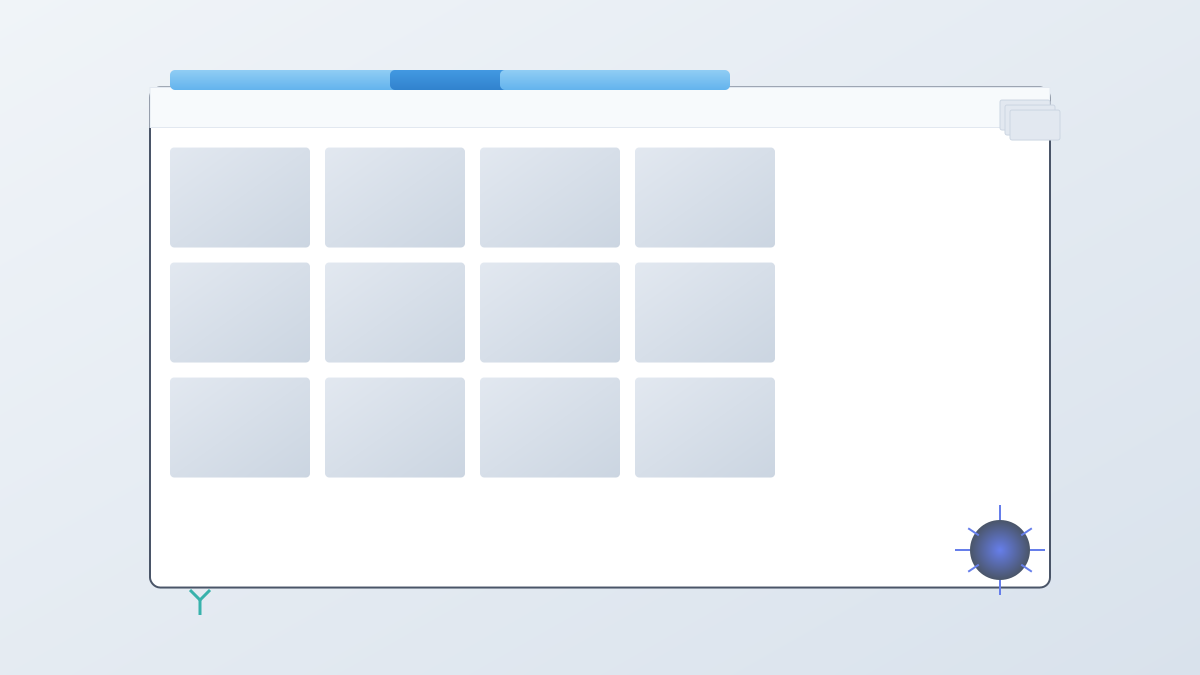
Supports switching between full-size screenshot view and thumbnail grid view; drag-and-drop to sort cards; delete unwanted cards; the latest report is saved in IndexedDB.

Convenient Export Options

Export a complete folder containing index.html and screenshot files; provides a PDF-friendly layout suitable for printing.

4

Section 04

Typical Application Scenarios

Research and Literature Review

Integrate information from multiple papers/documents, arrange them logically, delete irrelevant content, then export or print.

Providing Context for AI Assistants

Package multi-modal data (text + images + metadata) for use in session handover, bug classification, competitor review, document drafting, etc.

QA Testing and Issue Handover

Export reports to share with the team, recording URLs, summaries, and visual states.

Personal Knowledge Archiving

Snapshot content open at a specific time point, saved locally until cleared or exported.

5

Section 05

Technical Implementation and Architecture

Manifest V3 Compatibility

Adopts Chrome's latest Manifest V3 standard, uses service workers to handle background logic, and is compatible with the latest Chrome and Edge browsers.

Permission Design

Requires permissions like tabs, activeTab, scripting, storage, , etc. Restricted pages (e.g., chrome://) cannot be screenshot and will display an error.

Data Storage and Migration

Report data is stored in IndexedDB, supports migration from older versions, all processing is done locally, and no data is sent to the backend.

6

Section 06

Privacy and Security Considerations

All processing runs in the user's browser and does not rely on external servers; reports and screenshots are only stored locally and not uploaded to the cloud; users can clear or export at any time; automatically skips inaccessible internal pages to avoid security risks.

7

Section 07

Quick Start Guide

  1. Clone or download the code repository
  2. Open chrome://extensions, enable developer mode, and load the unpacked extension
  3. Set the extension's website access permission to "On all sites", reload if necessary
  4. Open tabs and click the extension icon to generate a report
  5. Use export to save the folder or print to generate a PDF.
8

Section 08

Project Value and Significance

Tab Screenshot Report addresses the pain point of organizing information from multiple tabs, reflecting an understanding of modern workflows:

  • Bridge for human-machine collaboration: Provides structured multi-modal context for AI
  • Lightweight knowledge management: Instant visual capture solution
  • Open-source and extensible: Supports custom features

Conclusion: In the era of information explosion, this tool provides an elegant solution for efficiently capturing, organizing, and sharing browsing content. It is suitable for various users such as researchers and developers, demonstrating the potential of browser extensions to enhance human-machine collaboration.