Zing Forum

Reading

ComfyUI LLM++: Infusing Large Language Model Capabilities into AI Image Generation Workflows

ComfyUI LLM++ is a custom node that integrates multimodal large language models into ComfyUI workflows. It supports automatic generation and optimization of image generation prompts via cloud APIs or local models, significantly improving the efficiency of AI painting workflows.

ComfyUImultimodal LLMimage generationprompt engineeringStable DiffusionMistralGeminiLM StudioAI绘画提示词生成
Published 2026-06-15 00:40Recent activity 2026-06-15 00:52Estimated read 6 min
ComfyUI LLM++: Infusing Large Language Model Capabilities into AI Image Generation Workflows
1

Section 01

ComfyUI LLM++: Integrating LLM Capabilities into AI Image Workflows

Core Overview

ComfyUI LLM++ is a custom node developed by abzaloff (hosted on GitHub, released on June 14, 2026) that integrates multimodal large language models (MLLMs) into ComfyUI workflows. It supports both cloud APIs (Mistral, Gemini) and local models (via LM Studio) to automatically generate/optimize image prompts, addressing prompt engineering pain points and improving AI painting efficiency.

Key Purpose

Enable users to convert natural language descriptions or reference images into professional, detailed image prompts without requiring manual expertise.

2

Section 02

Background: The Pain Points of Prompt Engineering

In AI image generation tools like Stable Diffusion/ComfyUI, high-quality prompts are crucial for achieving ideal results. However:

  • Manual prompt writing is time-consuming and requires knowledge of composition, lighting, style, and syntax.
  • Users often struggle to translate their ideas into precise, effective prompts.

ComfyUI LLM++ addresses this issue by using MLLMs to convert natural language or images into ready-to-use prompts.

3

Section 03

Core Features & Supported Models

Core Functions

  1. Text-to-prompt: Convert simple natural language into detailed prompts.
  2. Image-to-prompt: Analyze reference images (batch up to 30) to generate descriptive prompts.
  3. Prompt optimization: Rewrite/expand existing prompts to improve quality.
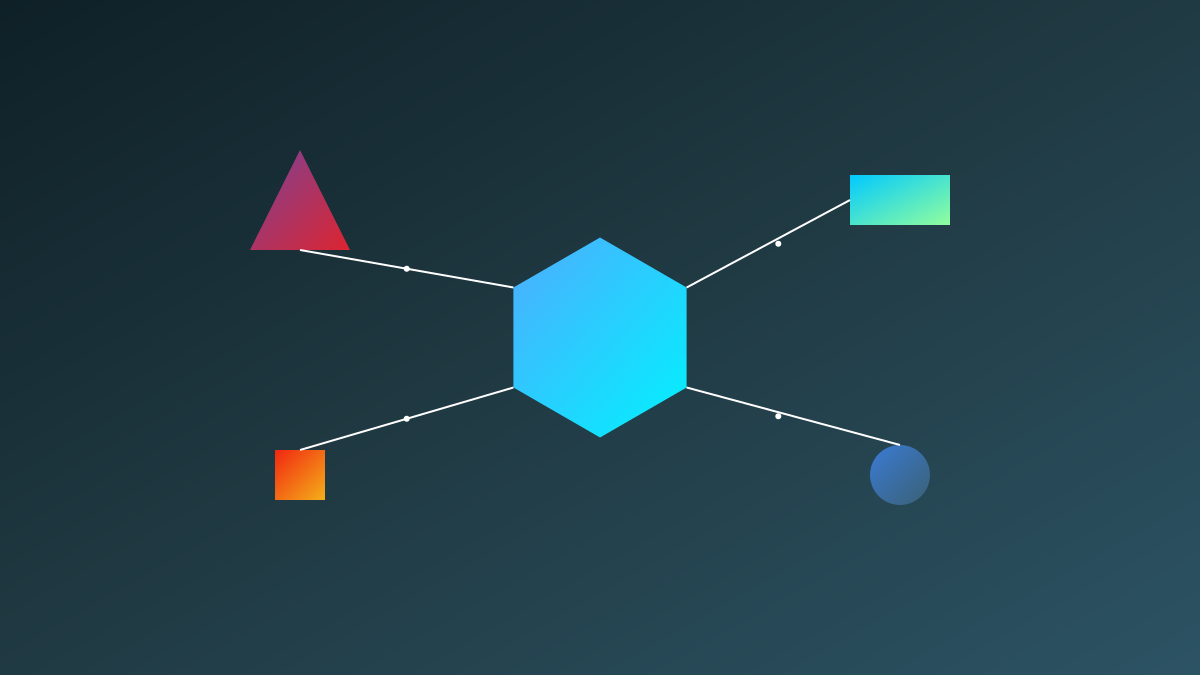
  4. Multi-model support: Hybrid cloud/local options.

Supported Models

  • Cloud: Mistral (pixtral-large-latest), Gemini (2.5-flash/pro).
  • Local: LM Studio (via OpenAI-compatible API; supports text/multimodal models).

This flexibility balances task complexity, privacy, and cost.

4

Section 04

Installation & Configuration Guide

Installation Steps

  1. Copy the project to ComfyUI's custom nodes directory: ComfyUI/custom_nodes/Comfyui_LLM++.
  2. Restart ComfyUI and refresh the browser.
  3. Ensure dependencies (requests, Pillow, numpy) are installed.

API Configuration

  • Mistral: Enter the API key in Settings → LLM++ and select mistral:pixtral-large-latest.
  • Gemini: Enter the API key (from Google AI Studio) → select gemini:2.5-flash/pro.
  • LM Studio: Start the server → input the address (default: http://127.0.0.1:1234/v1) → refresh models.

Image Processing

Automatically handles RGB conversion, resizing (max side 768px by default), and JPEG compression (max 400KB by default) to meet API limits.

5

Section 05

Node Usage & Practical Applications

Basic Workflow

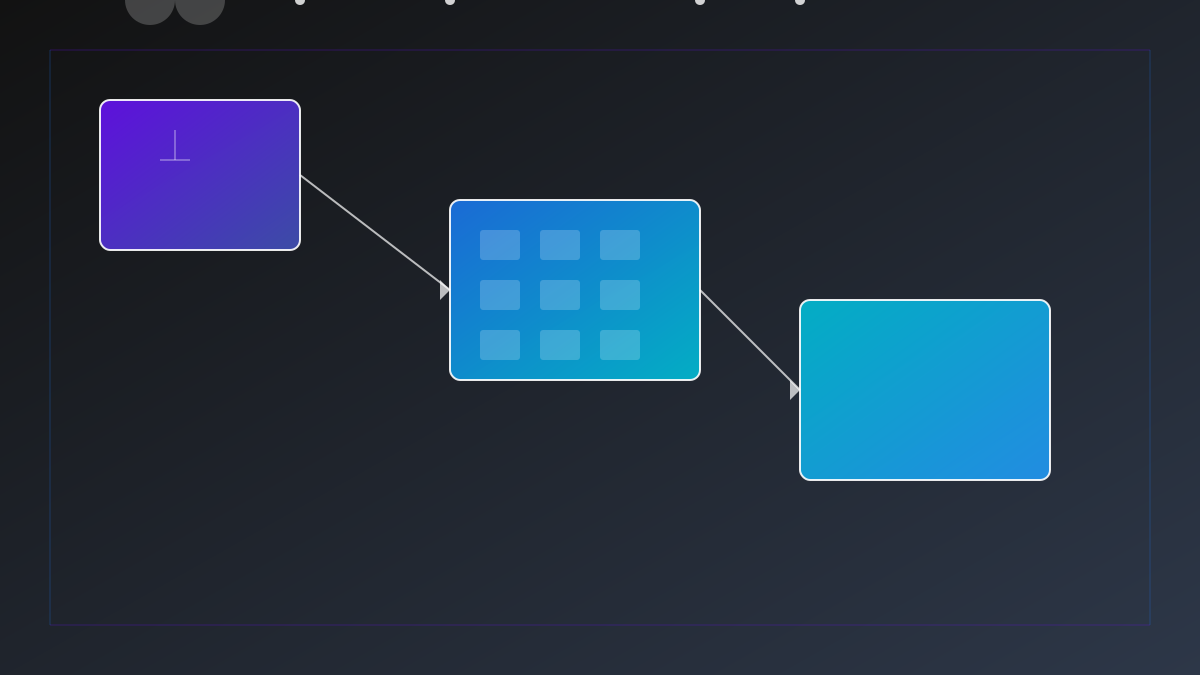
Load Image → LLM++ Prompt → CLIP Text Encode → KSampler → Save Image (image input is optional).

Key Parameters

  • prompt: Instruction for the model (e.g., "Describe the image as SDXL tags").
  • model: Cloud/local model selection.
  • generation_mode: Every Run (generate a new prompt each run) or On Input Change (generate only when inputs change).

Examples

  1. Image Reverse: Input a reference image → generate a detailed prompt.
  2. Prompt Optimization: Turn "a cat on a chair" into a cinematic prompt.
  3. Batch Processing: Generate tags for 30 style images (for LoRA training).
6

Section 06

Troubleshooting Common Issues

  • API key not set: Configure in Settings → LLM++.
  • LM Studio models not displayed: Check if the server is running, the address is correct, and click "Refresh LM Studio models".
  • LM model does not accept images: Use a multimodal model or disconnect the image input.
  • Prompt regenerates every run: Switch to On Input Change mode.
7

Section 07

Safety, Privacy & Conclusion

Privacy Notes

  • API keys/configurations are stored in llm_prompt_config.json (gitignored; do not share).
  • Local LM Studio models keep data on your machine (ideal for sensitive content).

Conclusion

ComfyUI LLM++ simplifies prompt engineering, improves efficiency, and offers flexible cloud/local options. It is a valuable tool for AI artists and content creators looking to streamline their workflows.